Copy Paste Data Option
It is preferable to avoid special characters (asterisk, hashtags, etc.) because column names can cause problems in the analysis.
By selecting the “Copy-Paste” option, we can copy the data and paste it directly into the system.
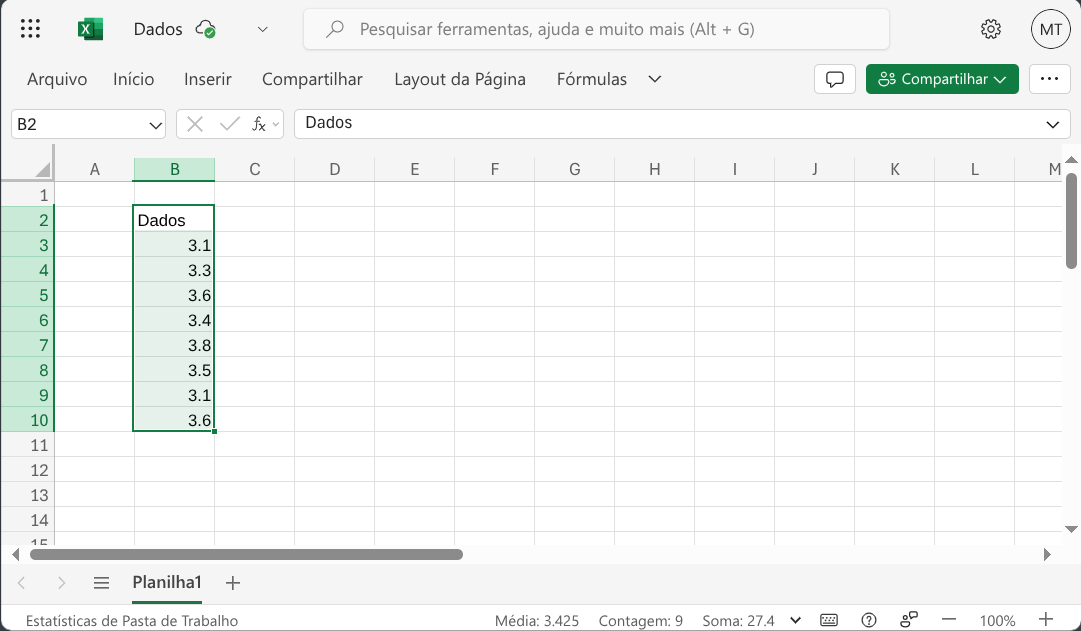
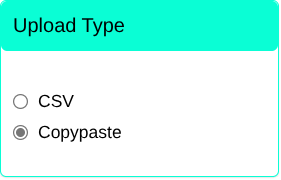
The input type must be selected, in this case select “copy-paste”.
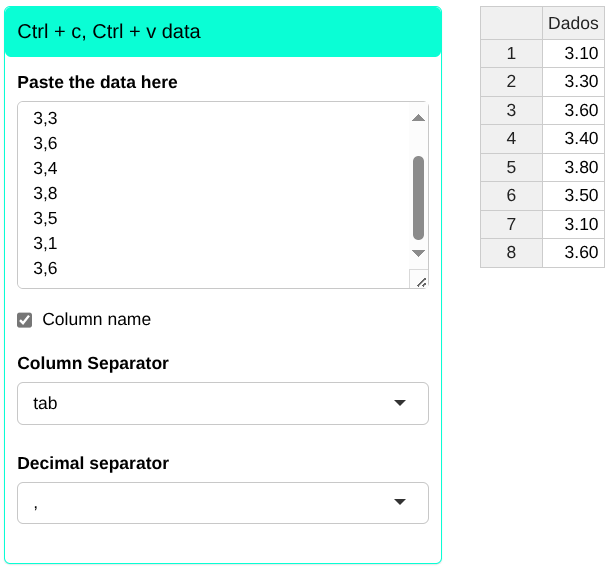
By selecting the Copypaste option we can type the data set, or copy and paste. You must select the character that separates the columns (tab, slash, comma or semicolon) and the character that separates the decimal places (comma, period or semicolon). Furthermore, if the columns contain a name, we will select the “Column name” box.
It is worth mentioning that the character selected as a column separator has to be the same as separating the columns in the dataset (in the case of example, slash), and the same goes for the character selected as decimal separator (if different is selected, the system will not will understand the data as numerical and will give an error in the analysis). In the figure below, we’ve left ‘comma’ selected instead of ‘period’ as the decimal separator. In this case, the system will understand the variable as numeric.
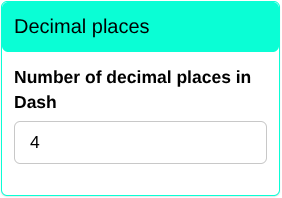
In the “Decimal Approximation” box, you can set the number of decimal places, and then click save to get the results on the dashboard.